

Optimization Techniques
Optimizing your Unity WebGL builds is essential for ensuring fast loading times, smooth performance, and efficient memory usage. This section covers key optimization techniques for Unity 2022 LTS and later.
Player Settings Optimization
Configure the following Player settings for optimal WebGL builds:
-
API Compatibility Level: Set to .NET Standard 2.1
-
Why: Produces smaller builds with cross-platform support
-
Implementation:
PlayerSettings.SetApiCompatibilityLevel(namedBuildTarget, ApiCompatibilityLevel.NET_Standard_2_1);
-
-
IL2CPP Code Generation: Set to Faster (smaller) builds
-
Why: Creates smaller builds and generates less code, resulting in faster build times
-
Implementation:
PlayerSettings.SetIl2CppCodeGeneration(namedBuildTarget, Il2CppCodeGeneration.OptimizeSize);
-
-
Managed Stripping Level: Set to High
-
Why: Strips unused code from managed DLLs, making executables significantly smaller
-
Implementation:
PlayerSettings.SetManagedStrippingLevel(namedBuildTarget, ManagedStrippingLevel.High);
-
-
Compression Format: Set to Brotli
- Why: Provides better compression ratios than gzip, resulting in smaller files
- Note: Make sure to check “Decompression fallback” option
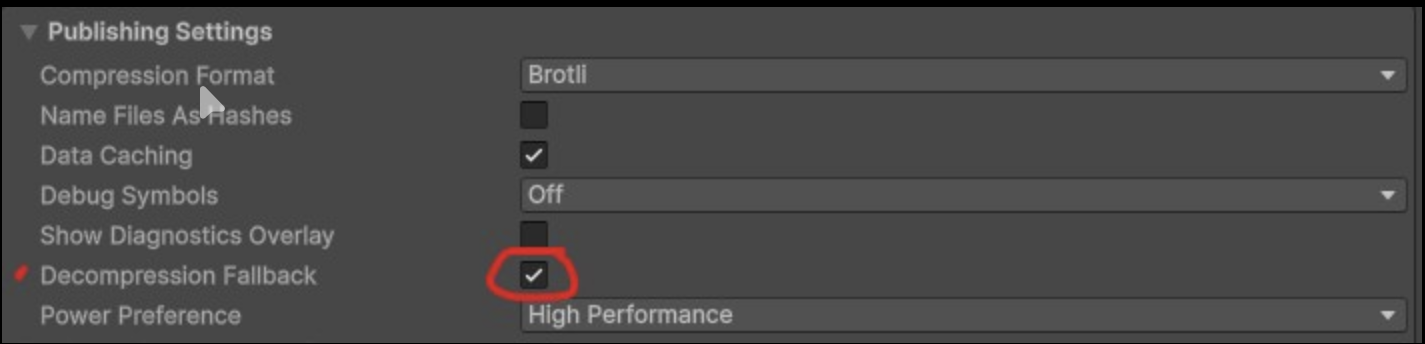
-
Implementation:
PlayerSettings.WebGL.compressionFormat = WebGLCompressionFormat.Brotli;
-
Data Caching: Set to Enabled
-
Why: Caches asset data on the user's machine, improving subsequent load times
-
Implementation:
PlayerSettings.WebGL.dataCaching = true;
-
-
Debug Symbols: Set to Off (for release builds)
-
Why: Disabling debug symbols reduces build size and improves performance
-
Implementation:
PlayerSettings.WebGL.debugSymbolMode = WebGLDebugSymbolMode.Off;
-
-
Enable Exceptions: Set to None (for release builds)
-
Why: Provides best performance and smallest builds
-
Implementation:
PlayerSettings.WebGL.exceptionSupport = WebGLExceptionSupport.None;
-
Code Optimization
For Unity 2022 LTS, set the Code Optimization to "Disk Size with LTO" for final release builds:
- Go to File > Build Profiles
- Select Web
- Disable Development Build if enabled
- Set Code Optimization to Disk Size with LTO
Note: This optimization can significantly increase build time but produces the smallest possible build size.
Implementation:
UnityEditor.WebGL.UserBuildSettings.codeOptimization = UnityEditor.WebGL.WasmCodeOptimization.DiskSizeLTO;Memory Management Optimization
Memory management is critical for WebGL applications due to browser limitations:
Unity Heap Optimization
- Monitor Heap Usage: Consider using Unity Profiler to track memory usage during development
- Implementation: Enable the Memory Profiler and analyze heap usage patterns
- Configure Initial Memory Size: For mobile browsers, set the Initial Memory Size to match typical heap usage
- Implementation: Configure in Player Settings > Publishing Settings
- Avoid Excessive Allocations: Minimize temporary allocations, especially in loops
- Implementation: Review code for allocation patterns and optimize accordingly
See more about this topic in Unity Learn.
Garbage Collection Optimization
WebGL has unique garbage collection behavior that only runs at the end of each frame:
- Use StringBuilder for String Operations:
-
Implementation:
// Bad practice
string hugeString = "";
for (int i = 0; i < 10000; i++)
{
    hugeString += "foo";
}

// Good practice
var stringBuilder = new StringBuilder(30000); // Pre-allocate capacity
for (int i = 0; i < 10000; i++)
{
    stringBuilder.Append("foo");
}
string hugeString = stringBuilder.ToString();
-
- Pre-allocate Arrays:
-
Implementation:
// Bad practice
byte[] data;
for (int i = 0; i < 100000; i++)
{
    data = new byte[i];
}

// Good practice
byte[] data = new byte[100000];
-
- Use NativeArray for Temporary Allocations:
-
Implementation:
using Unity.Collections;

// Allocate a native array that doesn't require garbage collection
NativeArray<float> values = new NativeArray<float>(1000, Allocator.Temp);
-
- Minimize Delegate Registrations:
- Implementation: Avoid excessive per-frame delegate registrations and unregistrations
More on this topic on Unity Documentation.
Graphics Optimization
Optimizing graphics is essential for WebGL performance:
Texture Compression
- Use DXT5 Compressed Textures (Desktop / WebGL)
Implementation:- Select your texture asset
- Select WebGL settings
- Enable Override For WebGL
- Set Format to DXT5
⚡ Recommended for desktop WebGL builds since it avoids runtime decompression and improves performance.
- Use ASTC for Mobile
Implementation:- For mobile optimization, select one of the ASTC block options
- Prefer 8×8 or larger block sizes for lighter GPU load and reduced memory use
Quality Settings
Lower the graphical quality level for better performance:
- Implementation:
-
Access Quality settings (Menu: Edit > Project Settings > Quality)
-
Select the Fastest or Fast quality level for WebGL platform
-
Or via script:
QualitySettings.SetQualityLevel(0, true); // 0 = Fastest
-
Asset Optimization
Asset Loading
Optimize how assets are loaded in your WebGL builds:
- Reduce Initial Asset Load:
- Implementation: Only include essential assets in the initial build, use Addressables for the rest.
- What essential means to each game could vary, but, in practice, this means any asset that, if not properly load, negatively affects or even halts the game's functioning.
- More on this on the Remote vs. Local Content and WebGL-Specific Optimizations subsections at Addressables page.
- Implementation: Only include essential assets in the initial build, use Addressables for the rest.
- Optimize Asset Bundles:
- Implementation: Use LZ4 compression for AssetBundles instead of LZMA
- Implement Progressive Loading:
- Implementation: Show loading progress and load assets in stages to improve perceived performance.
Asset Compression
The assets of the web build of your game (.js, .wasm, .data and .json files) may optionally be compressed using gzip or brotli compression, to decrease file size when serving the assets to the player, resulting in smaller download times.
Unity offers the option of pre-compreesing your built web assets before publishing, but at this moment spawnd servers do not support serving pre-compressed files. We recommend either using "Decompression fallback" option when publishing the build to ship both compressed and uncompressed files, or not use compression for the time being.
In the future spawnd servers will automatically compress these files, and also accept pre-compressed files, so the game developers do not have to worry about asset compression optimizations.
Updated 12 months ago